Client guide
Using your client portal
Your system, your requests and a direct line to Scott, in one place: what’s being worked on and what needs you. Five minutes to read, and you won’t need to read it twice.
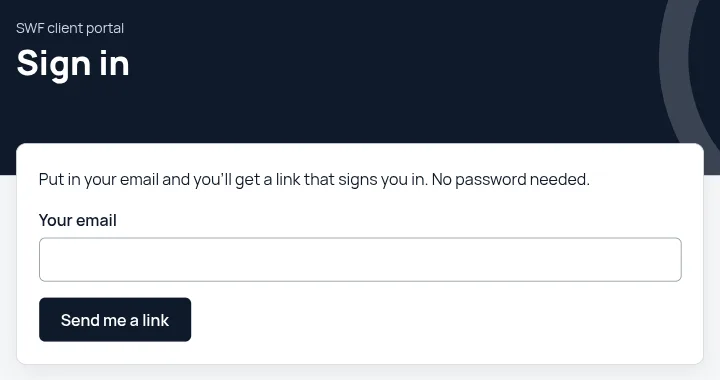
1 Signing in
There’s no password. Go to portal.swfconsults.co.uk, type your email address and press Send me a link. An email arrives with a button that signs you in.
- Each link works once, for 15 minutes. If it’s expired, ask for another: the newest one is always the one that works.
- No email after a minute or two? Check your junk folder, and that you used the address Scott has for you.
- Only people Scott has added can sign in. If a colleague needs access, ask him.
2 Your home page
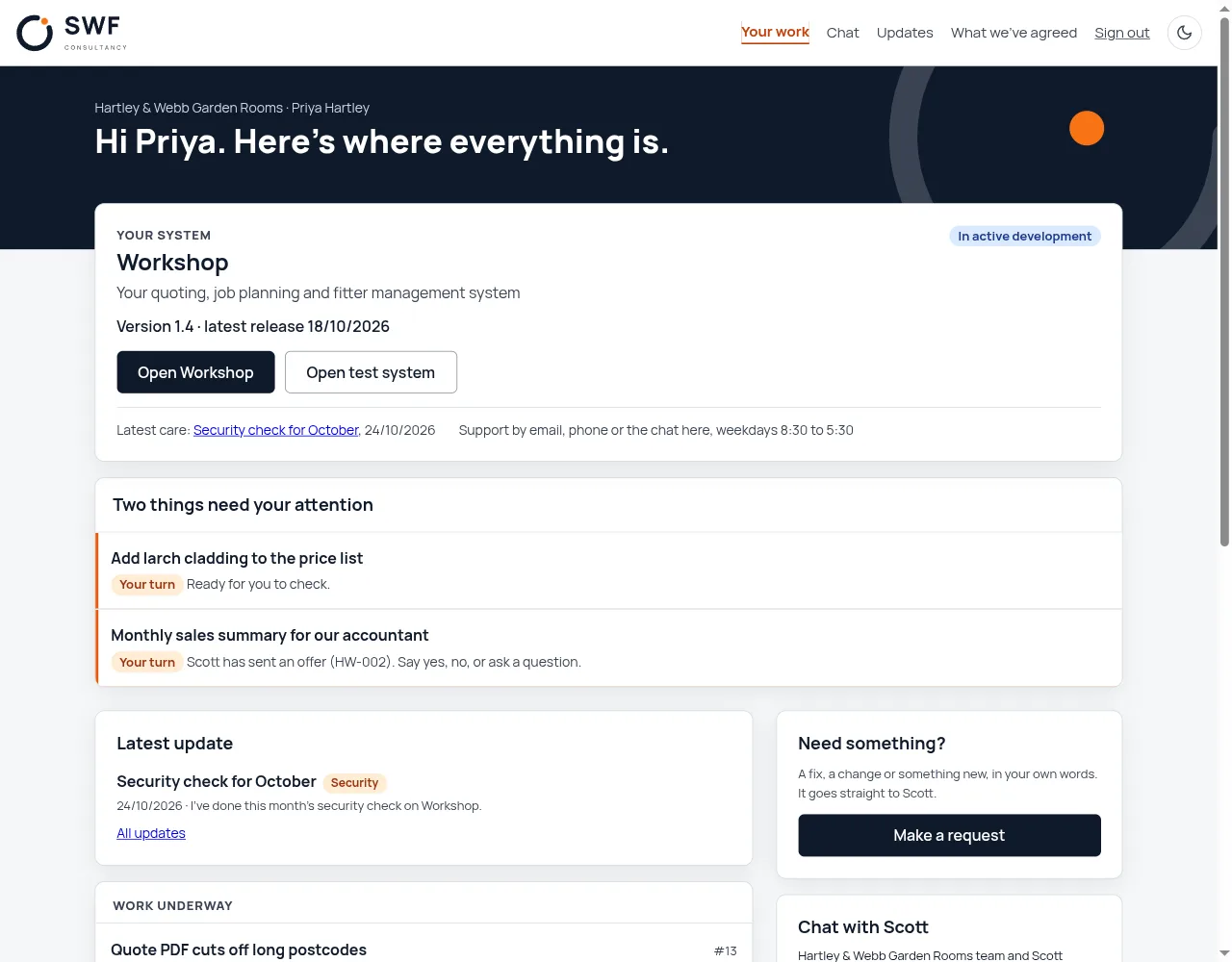
After signing in you land on one page that answers “where are we?” from top to bottom:
- Your system
- Its name, the version you’re on, when it was last released, and buttons to open it (and its test copy, if you have one). The latest care note sits underneath.
- What needs you
- Anything marked Your turn: something to check, an offer to say yes or no to, or a question from Scott. If it’s empty, nothing is waiting on you.
- Latest update
- The newest release note, weekly review or security check.
- Work underway
- Every open request, with its status and what happens next.
- Done for you
- What’s gone live or been closed, newest first, with the full history a click away.
3 Chat with Scott
For anything quick: a question, a heads-up, “is this meant to happen?”. Everyone at your organisation who signs in sees the same chat, so nobody has to forward anything.
- Enter starts a new line. The message only goes when you press Send, so you can write as much as you like.
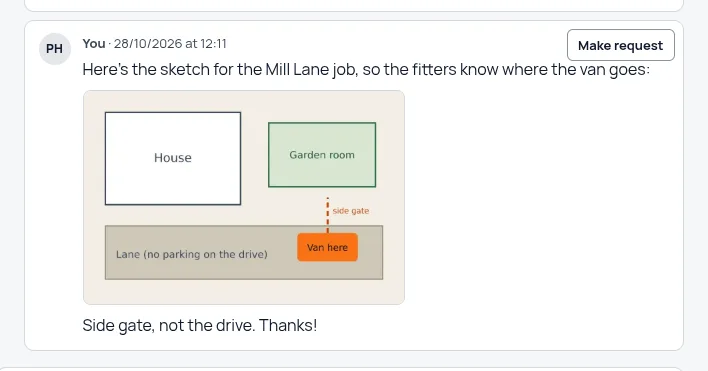
- Pictures: press Add pictures, drag them onto the box, or paste a screenshot straight in. Each one appears in your message as a line like
[picture 1], and shows exactly where that line is. Move the line to move the picture.
![Writing a chat message: the text box shows a [picture 1] line between two sentences, with the picture's thumbnail and an Add pictures button underneath](/images/portal-guide-compose.webp)
4 Making a request
When it’s work rather than a question, press Make a request on your home page. Write it in your own words (the first line becomes its title), say what kind it is, and add pictures the same way as in the chat:
- Bug: something’s broken.
- Change: adjust something that already works.
- Feature: something new.
Started something in the chat that turned out to be work? Every message has a Make request button. It copies the words into a new request for you to tidy up, and the chat notes which request it became. Scott can do the same from his side.
Each request has its own conversation, so the details of one job never get lost in another.
5 What the statuses mean
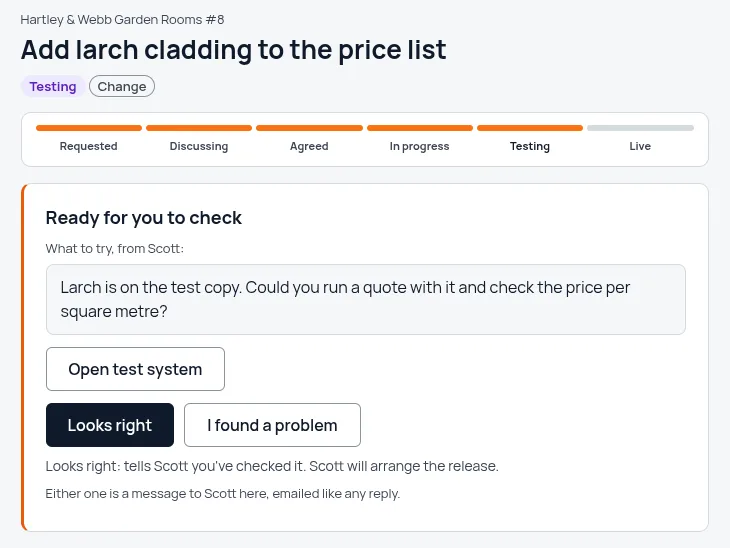
Every request shows a progress bar, and a short line saying what happens next.
- Requested
- You’ve asked. Scott will read it and reply.
- Discussing
- You’re talking it through on the request: what you need, what it would take.
- Waiting on you
- Scott needs an answer, a decision or something from you before he can carry on. It shows as “Your turn” on your home page.
- Agreed
- You’ve both said yes to what will be done. Scott will schedule it.
- In progress
- Scott is building it.
- Testing — please check it
- It’s on your test system. Scott says what to try; press “Looks right” or “I found a problem”.
- Going live
- Scott is putting it into your live system now.
- Live
- It’s in your system and ready to use.
- Closed
- Finished without going live: answered, not going ahead, or folded into something else. The reason is always given.
6 Updates
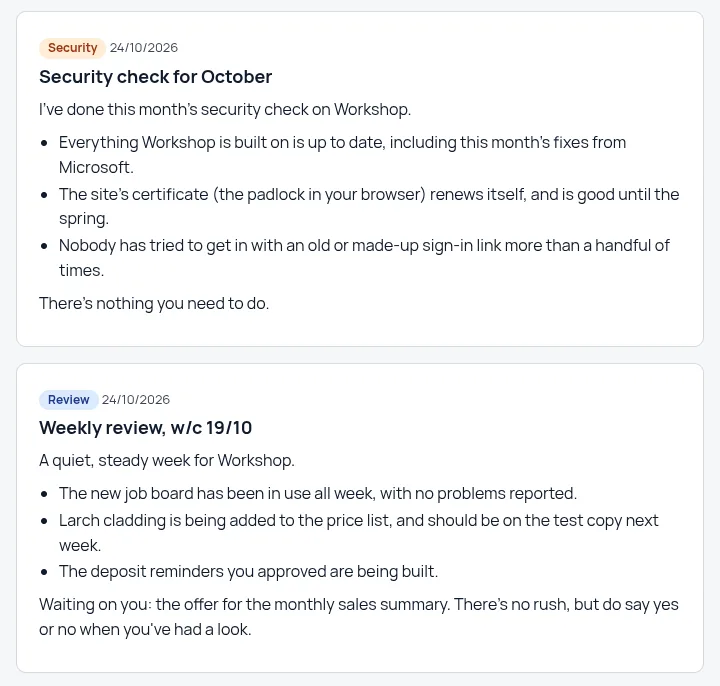
The Updates page is the running record of your system, newest first:
- Release notes: what changed in each version, in plain English, and which requests went into it.
- Weekly reviews: what happened this week, what’s next, and anything waiting on you.
- Security checks: what was checked on your system and whether anything needs doing. Usually nothing does.
7 What you’ll be emailed
The portal emails you when something needs you or something has finished, and keeps everything else on the portal. That way an email from it is worth opening.
Comes by email
- Your sign-in links
- Scott’s replies on your requests, in full
- A note that a new request has reached him
- Something going Live, or being Closed
- An offer to approve, and the receipt afterwards
- One reminder if a request has been waiting on you for three days
- A short note when Scott writes in the chat: never the words, and no more than one an hour
Only on the portal
- The chat itself
- Every other status move (Discussing, Agreed, In progress, Testing, Going live)
- Updates: release notes, weekly reviews and security checks
- Pictures, which stay behind the sign-in and are never attached to an email
8 Who can see your portal
Only the people at your organisation that Scott has added, and Scott. No other client can see your requests, your chat or your updates, and nobody can sign in without a link sent to an address on your list. When someone leaves, tell Scott and their access stops.
The details are in the portal’s privacy notice, linked at the foot of every portal page.
Quick answers
My sign-in link doesn’t work.
Each link works once, for 15 minutes, and asking for a new one cancels the old one. Go to the sign-in page, put your email in again and use the newest link.
The email never arrived.
Check your junk or spam folder, and that you used the address Scott has for you. If it still isn’t there, email or ring Scott.
Can I add a colleague?
Yes. Ask Scott and he’ll add them. They’ll see your organisation’s portal from then on, including the chat.
Something is urgent.
Don’t wait on the portal. Email Scott with URGENT in the subject, or ring 07712 833 306.
The portal is part of how I look after your software week to week. How changes are approved is on the client portal page.
Stuck?
Ask Scott
If something in the portal isn’t clear, say so in the chat or get in touch. If it confused you, it will confuse someone else, and it gets fixed.
Get in touch